Description
You may be working with clinical assistants or licensed practical nurses. Often, their role is to help the physician by pairing with their clinical activities.
Team2Book can now propose an “automatic” and “fair” assignment of your clinical assistants.
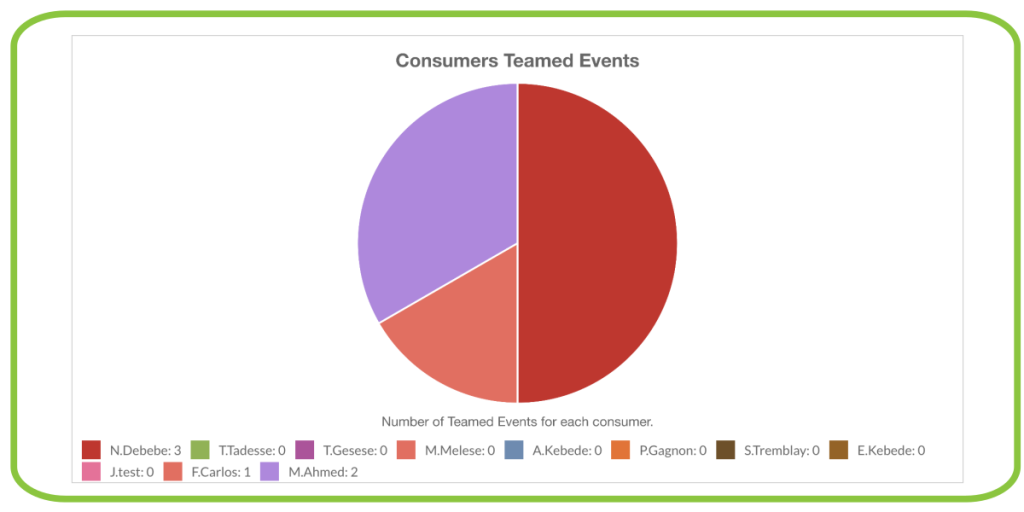
You can also view the historical and upcoming distribution of licensed practical nurses through the “Assistants” tab in the “Statistics” section of your Team2Book dashboard.
This short tutorial shows you how to use this feature.
To activate assistant assignment
- Log in to your Team2Book dashboard.
- In the left menu, choose “Settings”
- In the “Settings” section, select the “Consumer” tab at the top of the page.

- The “Teamed With” option must be enabled. This is a prerequisite because the assistant assignment function uses this field.
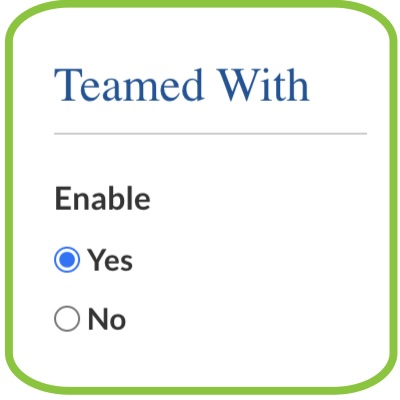
- Once “Teamed With” is enabled, you will see the “Assistants Assigner” option appear further down, which you must activate. (Don’t forget to save.)

To add your assistant groups
Once the “Assistants Assigner” feature is enabled, a new section appears in the left menu: “Assistant Groups.”
This section lets you define who the assistants are and who the assisted consumers are. You can also specify when during the week assistants work alongside assisted consumers.
Here is how to add a new assistant group:
- From the assistant groups table, click the “Add One” button.

- You can then specify:
- Assistance days
- Assistance hours
- Assisted consumers
- The desired assistant assignment percentage
- By default, an assistant share of 100% means an equal share among all assisted consumers.
- 200% means that this consumer will be assisted twice as often as a consumer with a 100% share.
- The Assistants
- The number of consumers each assistant can assist at the same time.
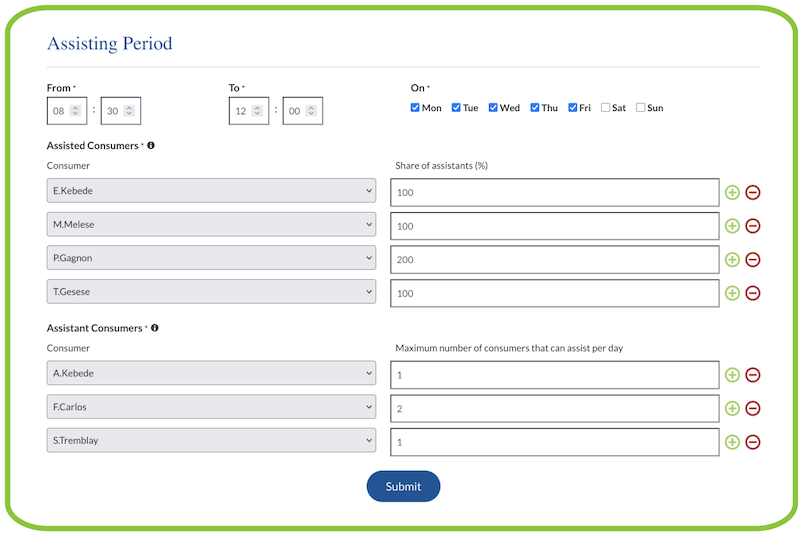
- Submit your assistant group.
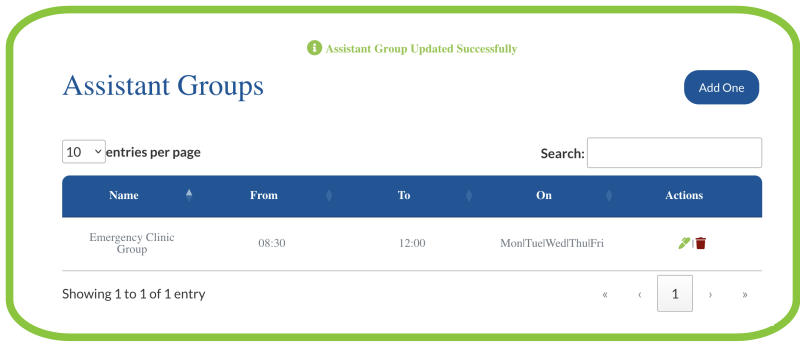
The table shows the existing assistant groups.
To automatically assign your assistants
Team2Book relies on the assignment of the last 3 months to attempt to distribute your assistants fairly.
- Go to the “Scheduler” section of your Team2Book dashboard.
- Choose the “Assign assistants” tab, which will now appear at the top of the page.
- Select the start and end dates for the assignment.
- Select the assistant group(s).
- Click “Assign”.
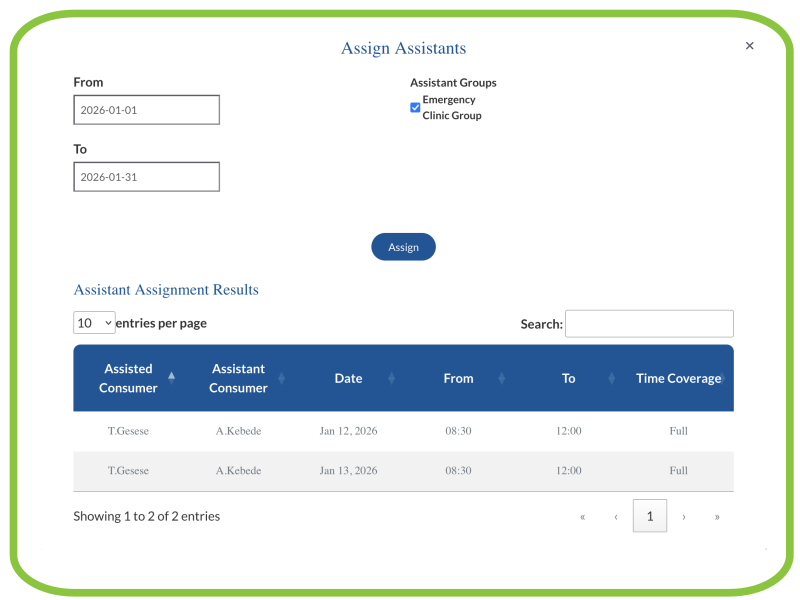
Team2Book will proceed as follows:
- For each available consumer who must be assisted during the chosen period, Team2Book will try to find an available assistant.
- Team2Book will populate the assistant’s “Teamed With” field for the duration of the assistance period.
- A summary table will show the assignment results. Failed assignments (i.e., no assistant found) will also be listed.
- At the next scheduler run, the resource assignments for assistants and assisted consumers will populate the “Teamed With” field.
Important notes:
- The assisted consumer must be available.
- The assistant must be available.
- Team2Book will replace all existing availabilities during the assisted period. (Proceed with caution!).
- Team2Book will split assistants’ availabilities if the availability exceeds the assistance period.
- Example: If an assistant is available all day but must assist only in the morning, Team2Book will split the availability into 2 assistant events:
- A morning event with the “Teamed With” field filled
- An afternoon event without the “Teamed With” field
- Example: If an assistant is available all day but must assist only in the morning, Team2Book will split the availability into 2 assistant events:
- Team2Book will split the assisted consumers’ availabilities if they exceed the assistance period.
- This way, the consumer knows when an assistant is working with them and when they are working alone.
- Assistant assignment also works for special events.
- A notification will be sent to the team manager if Team2Book cannot find any assistant available to assist a consumer.
- For now, no error message will remain displayed in the “Scheduler” section of your Team2Book dashboard.
- If an assistant is only partially available, Team2Book will assign them and indicate it in the summary table (Coverage column: “Full” or “Partial”).
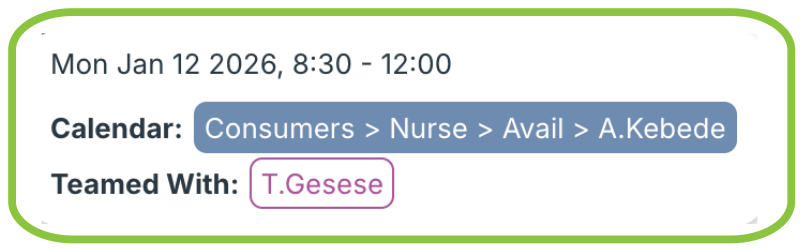
Assistant availability events are modified to populate the “Teamed With” field.
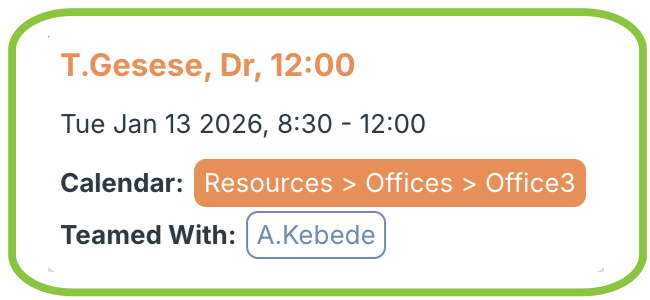
Resource events automatically populate the “Teamed With” field for the assisted consumer.
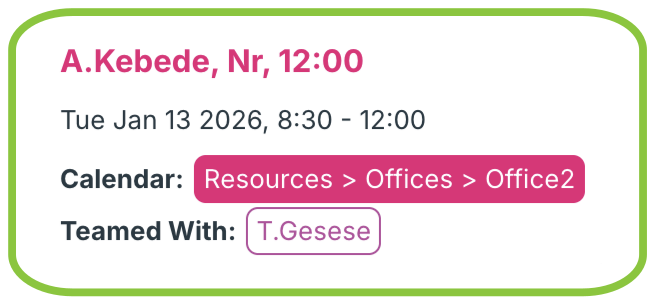
Resource events automatically populate the “Teamed With” field for the assistant.
If the consumer’s availability extends beyond the assistance period, Team2Book will create an additional availability event for the rest of the day.
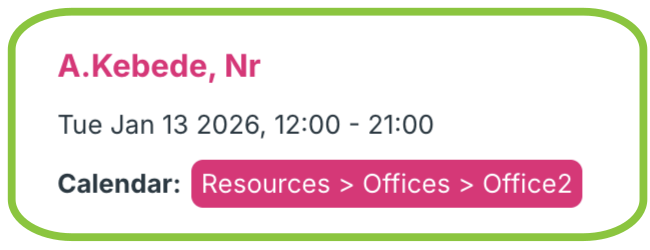
Resource event outside the assistance period.
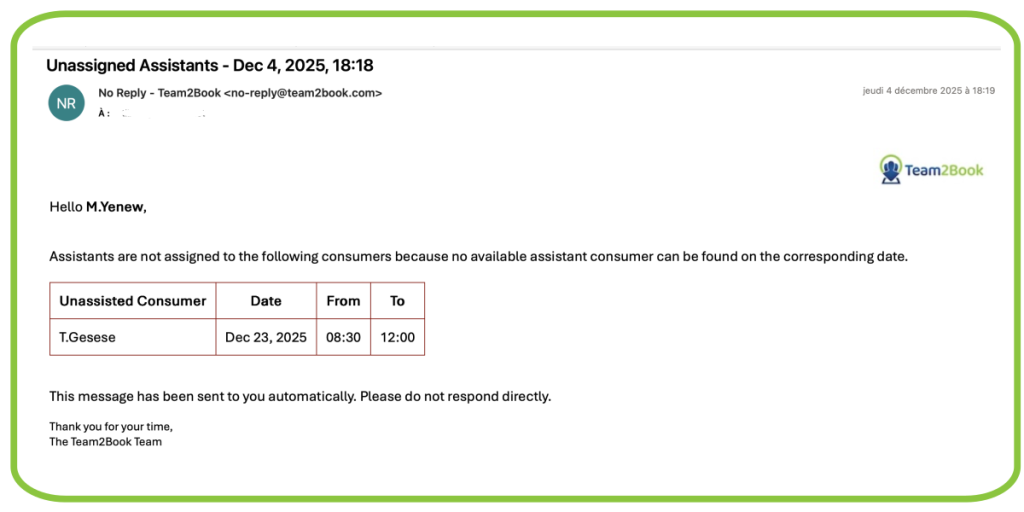
Email sent when Team2Book cannot find an available assistant.
Statistics
To verify whether assistant assignments are fair, take a look at the statistics!
- Go to the “Statistics” section of your Team2Book dashboard.
- Select the “Assistants” tab at the top of the page.
- Choose the desired parameters.